
This block allows you to add available file downloads to a given page. You are initially presented with an empty table and an “Add File” button.
Adding a file #
To add a file simply select the “Add File” button. You will then see a new row appear with two fields to add a File and File Name.
Next, select “Add File” in the new row. You will be presented with the media browser, in here you can either select a file that has been uploaded previously or you can upload a new file to attach. Once selected, click the blue “Select” button in the bottom right of the media browser.
Lastly, enter the file name you would like to display to users to download the file.
To add more files simply repeat the steps above until you have added all required files.
Make sure you click update in the top right corner to save your changes.
Removing a file #
To remove a file from the downloads, first move your cursor onto the file you would like to remove. You will then see a small minus button as shown below:
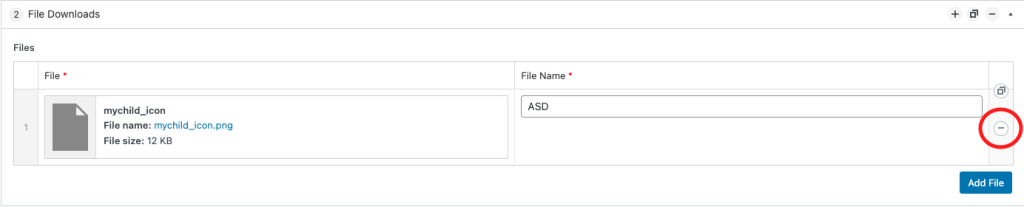
You will just need to click this, then confirm by clicking the red “Remove” button that appears.
Make sure you click update in the top right corner to save your changes.


