
Adding a menu onto the site so that it can be used as either the header, footer or as a sidebar navigation menu.
To get started first off you will need to log in to the WordPress admin dashboard.
Getting Started #
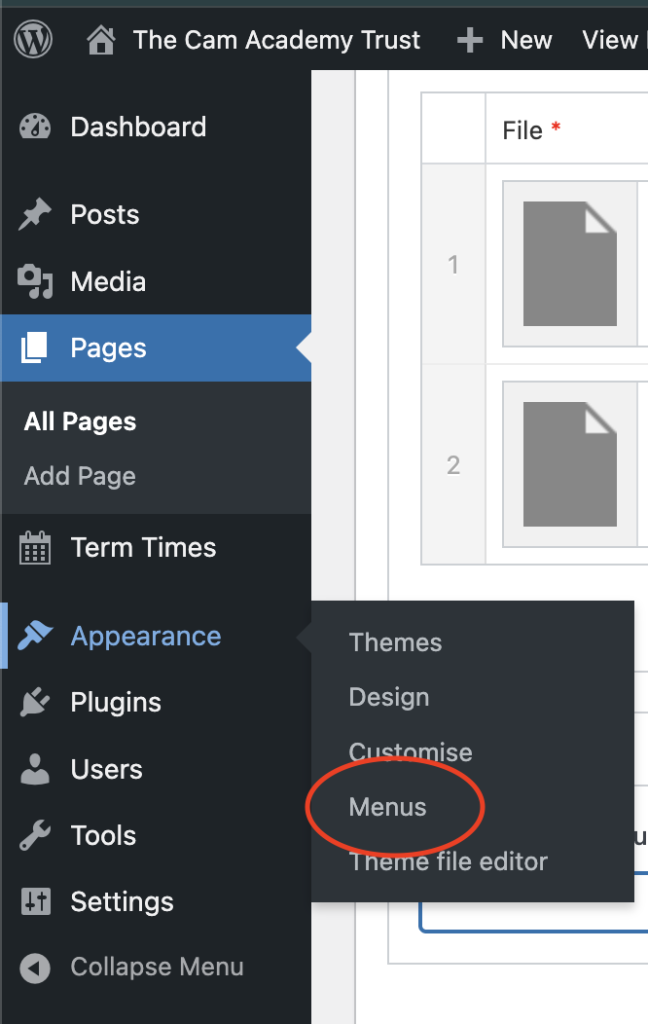
Once you are logged in you will need to hover over the “Appearance” option and select “Menus” from the menu that appears
Creating Menus #
To create a menu, first off go to the Menus page using the steps above. Once you are on this page, you will need to select the “Create a new menu” link from the top next to the dropdown.
Once the page has loaded, enter the menu’s name and click Create menu. You will see the pages down the left side are disabled, this is because you cannot add anything to the menu until it is created.
You will be taken to edit the new menu. See below on what you can do to add, rename and remove pages from your menu.
Editing a menu #
To begin editing a menu you will need to visit the Menus page using the steps at the top of this article.
Once on this page, from the dropdown selection at the top of the page you will need to select the menu you would like to change. You will then need to click “Select” to begin making changes.
Adding Pages #
Then when the page has loaded, you will see the structure of your menu. From here you can add new pages from the left hand side by selecting each page as required and clicking “Add to menu”.
Re-ordering Pages #
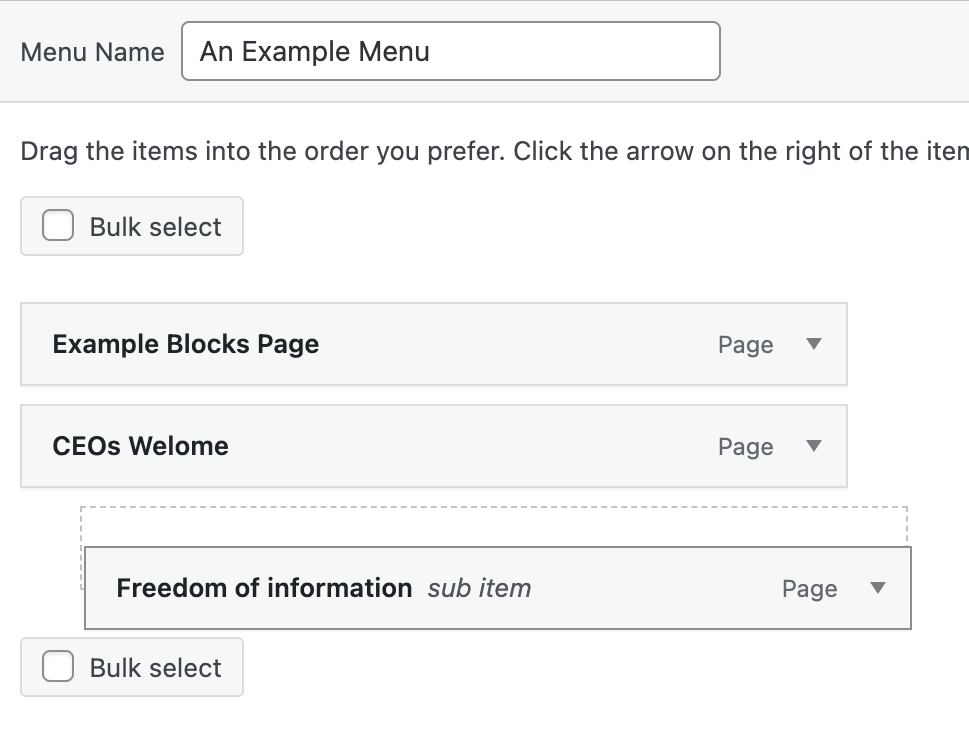
You can re-order your menu by dragging each link under Menu Structure and can also “nest” links by dragging them under another link until you see an indented preview as shown below.
Changing link text / removing pages #
You can change the text of a page by clicking the arrow next to the page title to expand for more options. In here you will find a text entry field to be able to re-name the post for this menu under Navigation label. (this does not change the page’s name itself, only for the menu)
In this expanded state, you can also see a Remove link, this will remove this page from your menu.
Saving your changes #
Changes made to your menu are not saved automatically and need to be done once complete. When you are ready you will see a blue Save menu button, if you click this your changes will be saved and published.
Deleting a menu #
To delete a menu, you will just need to click the Delete menu link next to the Save menu button. This will remove your menu. If it is added on a page under the Menu block, this will now display nothing but the block will remain in the admin area.


