
This page is the default page to be used for the primary contact form.
This page has many options available to you which we will go through in order of the tap list at the top.
Content #
Content #
This is a standard editor field, and will display on the right hand side of the contact form. You can enter any text you would like along with a range of styling options to suit the desired output.
Contact Cards
This field is where you can display key contact details for members of staff / office contact details. To add a contact click on the blue “Add Contact” button.
Once done you will see 5 fields appear in the group. All the fields are optional, and if one is not entered it will not be shown. This can be handy to hide the direct dial or direct emails to specific staff members.
- Contact Title
- This field displays above the persons name in small blue text
- Full Name
- This field is the name of the contact, it should be either their full name or the department the user can contact
- Role
- This is the staff members role and displays under their full name in smaller text.
- Telephone
- This is the staff members contact number and displays as a clickable phone number if entered
- Email
- This is the staff members email address and displays as a clickable email address.
Display Options
Here you will see a range of Show/Hide switches. You are able to hide and show certain aspects of the contact form. If you wish to turn off a certain feature of the contact form, or only show contact details instead of a form, this can be done here.
By default, all the fields are marked as hidden and you must turn on the features you would like.
Form #
Form Title #
The form title field is a simple text entry field, it is larger text that will display above the contact form.
Maps #
Latitude and Longitude #
If you have the Maps feature turned on, as outlined in the Display Options section, you will need to enter the Latitude and Longitude coordinates into the fields shown under this tab.
The easiest way to get these is to visit Google Maps and go to the location you would like to add.
Next, if you right click on the location you will see the coordinates in the dropdown. You can click these to copy them to your clipboard, and simply paste them into the fields as required. See below:
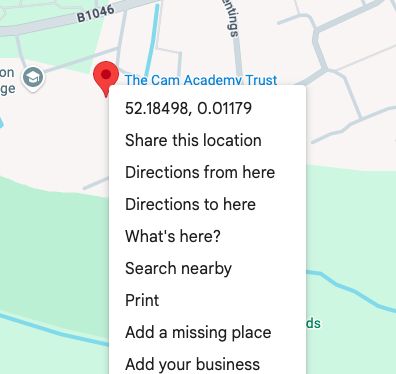
The first coordinate is the Latitude and the second is the Longitude which are separated by a comma.


