In the left menu, go to Pages → Add New.
Give your page a title at the top.
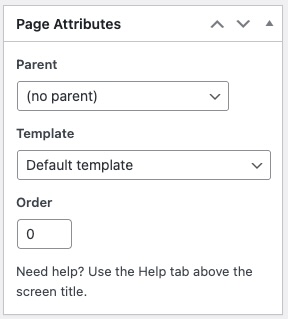
Select a Parent page if applicable under ‘Page Attributes’ on the right.
Select the correct Template on the right under ‘Page Attributes’. Some pages such as staff pages can make use of special templates. To ensure the pages don’t all look the same try and use different templates. See: Templates
Add your content in the main editor. See: Using the editor
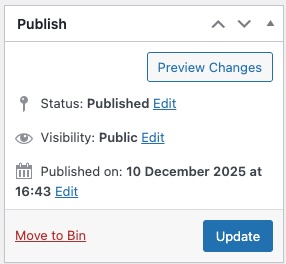
Click Publish when you’re ready for it to go live.
Status #
When adding or editing a page, WordPress gives you a few options that control who can see the page and when it goes live.
Published – Live on the website and visible to everyone.
Draft – Not published yet. Only logged-in editors can see it.
Pending Review – Used when someone creates a page and needs someone else to approve it.
Visibility #
Public – Anyone can view the page.
Private – Only logged-in editors and administrators can see it. Hidden from the public website.
Password Protected – Visitors must enter a password you set. Useful for sharing private info without making a full private page.
Publish Date & Time #
You can choose exactly when the page goes live.
Click the date/time next to Publish or Update.
Change the date/time to schedule it in the future.
If you set a future date, the page will automatically publish at that time.